
Quick start#
This guide walks you through protecting your base environment and managing plugins with conda-self.
Prerequisites#
conda 26.1.1 or later
conda-self installed in base (
conda install -n base conda-self)
Protect your base environment#
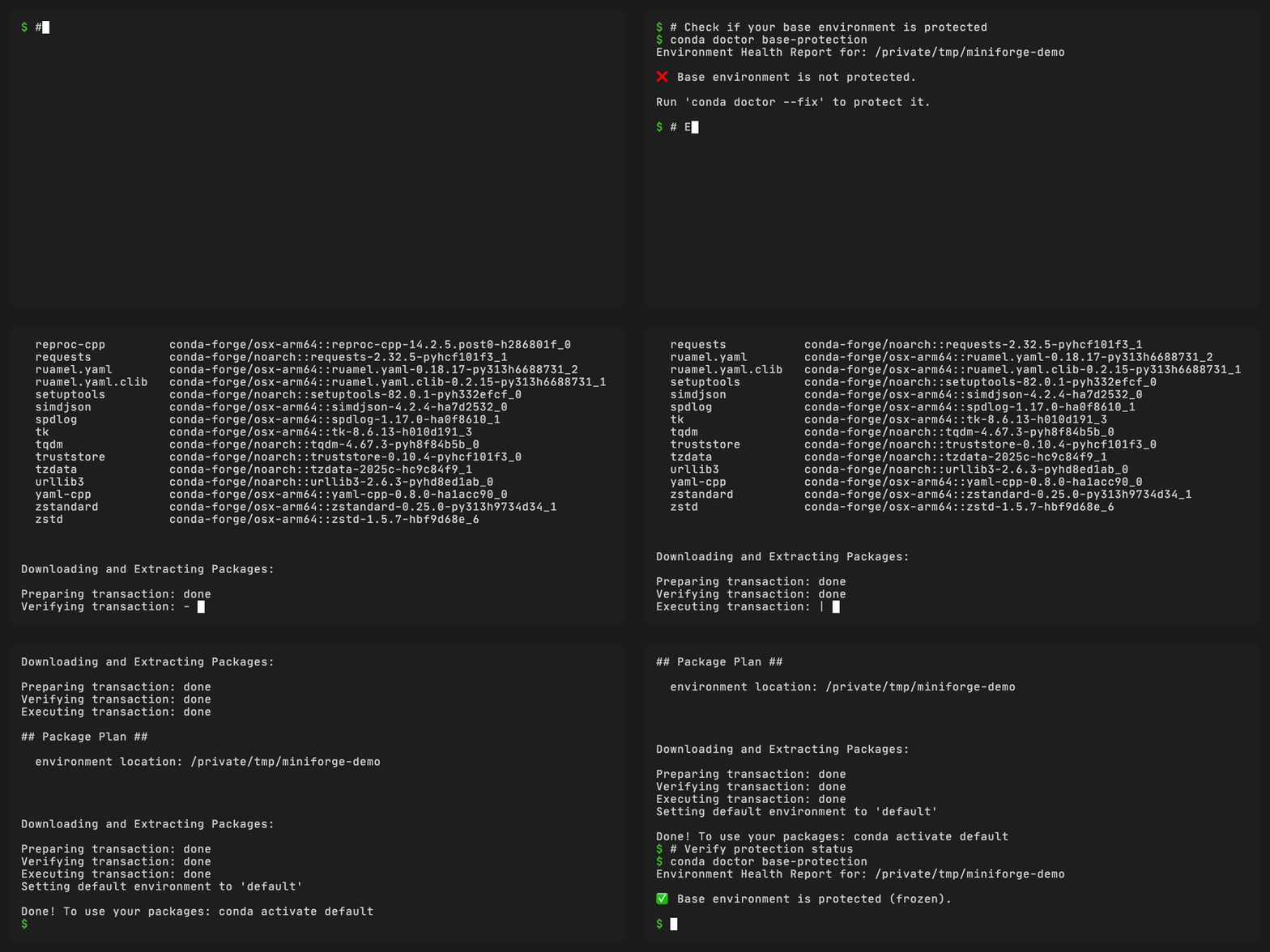
Using conda doctor, check whether base is currently protected:
conda doctor -n base base-protection
If it is not, enable protection:
conda doctor -n base base-protection --fix
This does four things:
Tries to save a snapshot of base in conda’s explicit format
Clones your current base environment to a new
defaultenvironmentRemoves conda packages other than conda, conda-self, configured permanent packages, their dependencies, and installed conda packages named in an available installer snapshot
Marks base as frozen so regular conda commands refuse to modify it unless
--override-frozenis passed
Tip
You only need to run this once. After protection, use conda self
commands to manage plugins in base.
Install a plugin#
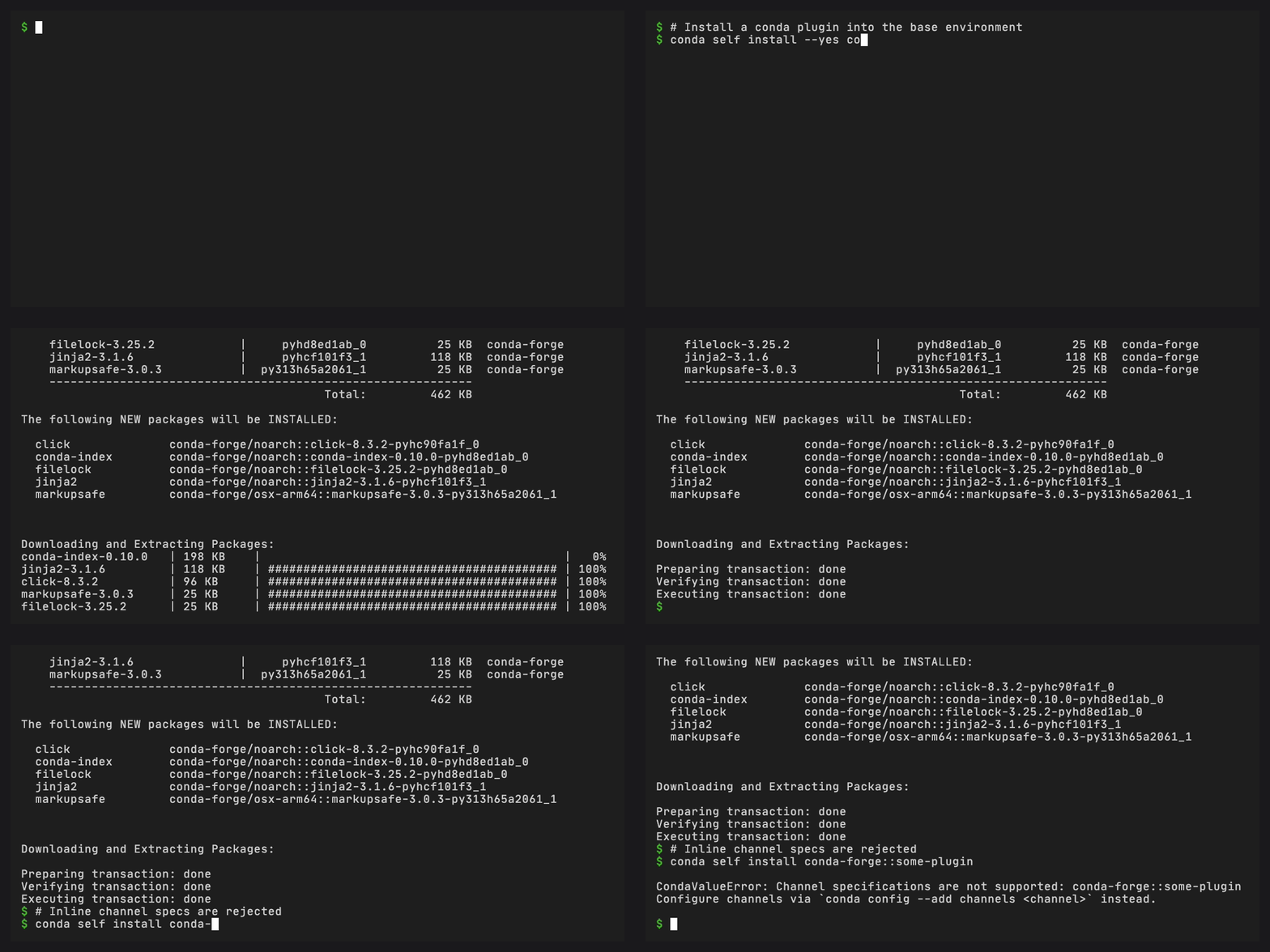
conda self install conda-index
conda-self installs the package via a subprocess and checks whether it registers as a conda plugin. If validation fails, conda-self uninstalls the requested package. Packages installed as its dependencies may remain.
Update all installed packages#
conda self update --all
This updates every installed package in the base environment.
Remove a plugin#
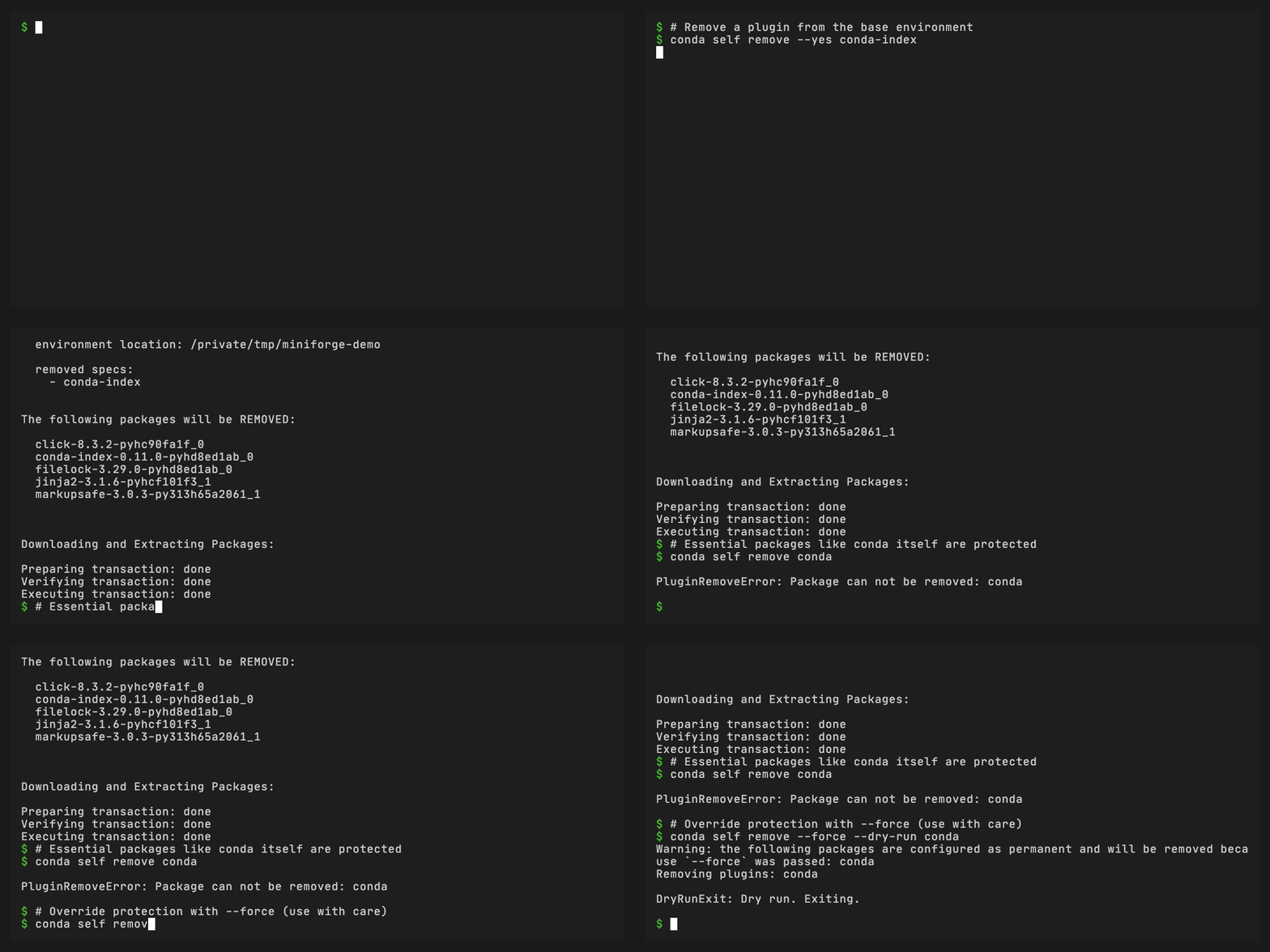
conda self remove conda-index
Conda-self protects conda, conda-self, configured permanent packages, and their
dependencies from direct removal requests unless --force is passed. Conda’s
own transaction checks still apply.
Reset base#
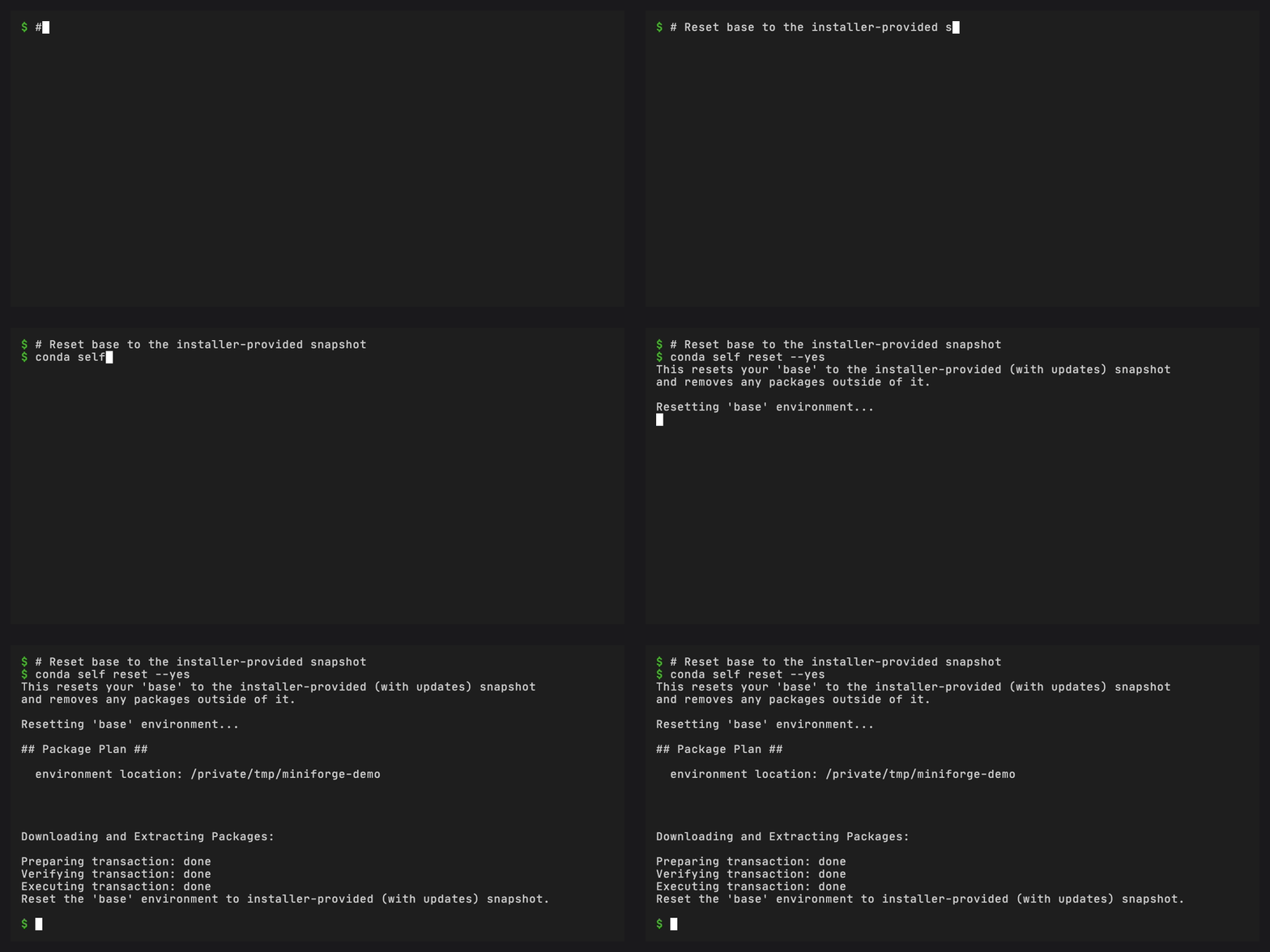
If something goes wrong, automatically select a reset mode:
conda self reset
Next steps#
Protecting your base environment – A deeper walkthrough of base protection and what happens under the hood
Managing plugins – Install, update, and remove plugins with confidence
Features – How base protection, snapshots, and plugin validation work
CLI reference – Every command and flag